

| Contents | |
|---|---|
 Browser Logins Browser Logins |
Browsers can store your logins |
| Importing Browser Logins |
Populate logins from your browser |
| Exporting Vault Logins |
Create a browser login export file. |
| Security USB |
Always store unsecured login credentials on USB sticks |
Browser Logins
Modern browsers allow you to save login details when you have successfully logged into a website.
For example, this is the prompt to save password in Google Chrome:
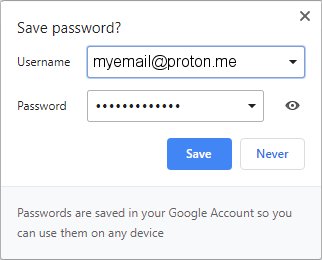
If you click Save, next time you log into that website you can select auto-fill to complete the login.
While this is a very convenient feature, you are relying on the browser software, and this case also your Google Account, to securely store your login credentials.
While security may not be important for social media websites, it is critical for commercial and banking logins.
In a world of hackers, data and identity thieves, we argue that all logins require maximum security.
Importing Browser Logins
Quantum Bunker® allows you to import all logins stored by your browser.
Perform a search for export browser logins and ad the name of your browser.
You will find the corresponding method of exporting logins to a .csv file.
Go ahead and perform a login export, ideally saving your myfile.csv to a dedicated Security USB memory stick.
Then select the import folder in your Vault and use the Data menu to select Import Browser CSV:
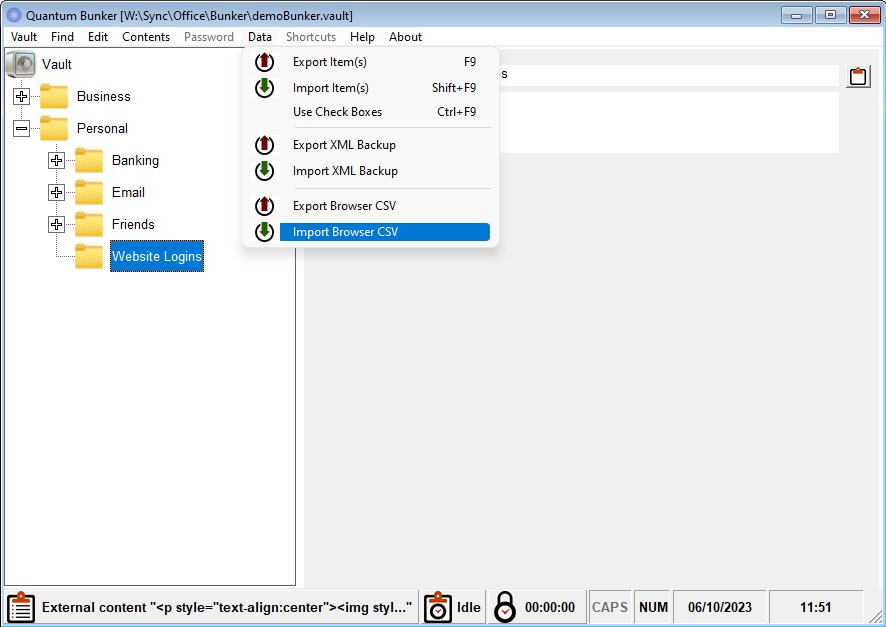
The CSV Import dialog is shown. Click Open CSV File and select the CSV file you saved from your browser.
Here is an example of the CSV Import dialog:
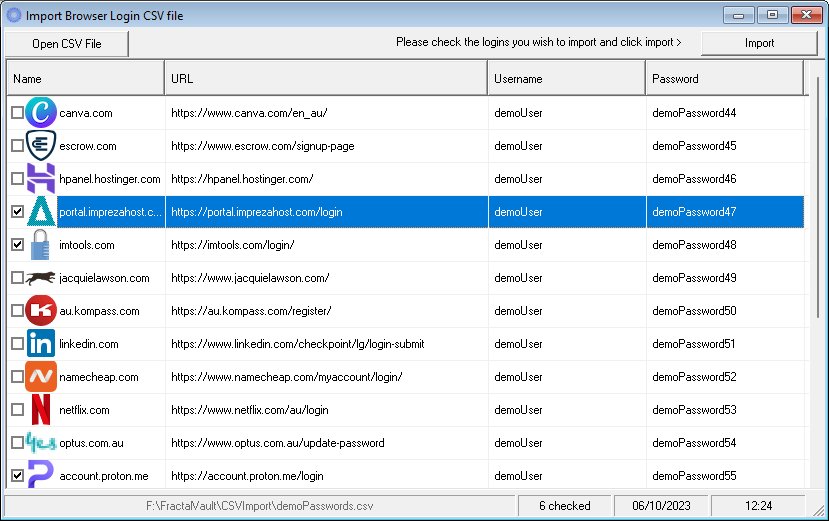
Note that not all items are checked. The importer checks to see if you already have logins and only checks those not found in your Vault.
You can check/uncheck any desired logins.
Click on Import to transfer the checked logins to the selected folder.
Exporting Vault Logins
If you wish to export some or all of your Vaults logins, use the Data Export Browser CSV menu option:
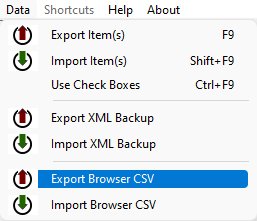
This will list all logins in your Vault:
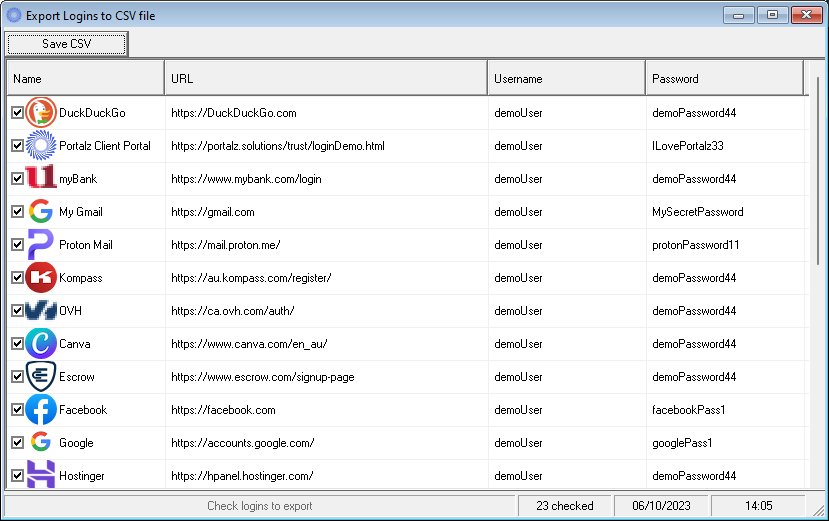
Check the logins you wish to export and click the Save CSV button to generate the CSV file.
Most browsers allow CSV Import of logins, but not all. Google Chrome does not have a convenient CSV import button, but we have found a workaround here.
Please note, we recommend that you do not rely on browser software and/or third party cloud services to securely store login credentials.
Security USB
We recommend that you use a dedicated Security USB memory stick to store unsecured login credentials.
When you perform a Browser CSV import or export, store the CSV file directly to your Security USB.
Then remove the Security USB from your PC (be sure to Safely remove hardware) and store in a secure place. Do not leave your Security USB connected!